 |
Peano
|
|
Peano
|
pvpython) has repeatedly caused crashes for this conversion workflow - we've seen everything from a BrokenProcessPool to a silent segmentation fault with no Python traceback at all (reproduced on ParaView 5.12.0-RC2), all traced back to pvpython's VTK/ParaView C++ runtime being unsafe to use the way this script needs to. Use a plain python3 installation instead, as described below - the exact same script and options work, just without the crashes. You still need Paraview (or another VTK-aware viewer such as VisIt) installed to open the resulting files - just not to run the conversion itself. This is my favourite starting point for data if I'm interested in whole movies and not only particular snapshots. Yet, it might become inconvenient for large datasets, as it is too slow.
The command line, Python-based conversion of Peano works as long as you have vtk installed, which the standard Peano Python environment already gives you - consult the installation page if you have not set one up yet:
     python3 -m venv .venv
     source .venv/bin/activate
     pip install --upgrade pip
     pip install -e .
With the virtual environment active, invoke render.py through Python's module syntax:
python3 -m tarch.plotter.api.render --help
This works from any directory - you never need to reference Peano-dir itself - because render.py sits inside the proper Python package tarch.plotter.api, which -m locates automatically once the virtual environment is active, regardless of your current working directory. If you prefer to invoke the file directly instead, pass its absolute path:
python3 /absolute/path/to/Peano-dir/src/tarch/plotter/api/render.py --help
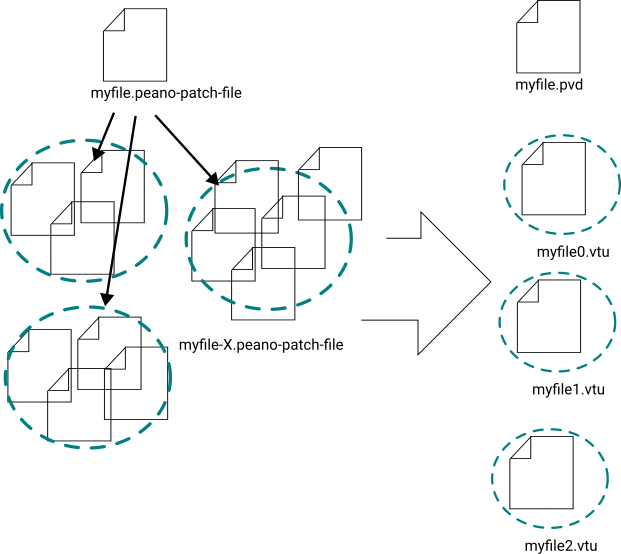
Peano applications dump their data into peano-patch-file files. These files in turn can include other files. Usually, you have one top-level file, and then this file references multiple files per time step - typically one file per subpartition per time step. The convert tools fuses all snapshots per time step and glues them together into one huge vtu file. On top of this, it generates (unless told otherwise) a pvd file which is really only an index over the vtu files and allows you to load all of them as one video within Paraview.
Please note that opening the resulting files still requires Paraview with Python, or another VTK-aware viewer such as VisIt - only running the conversion script itself no longer needs pvpython/Paraview.
If the description of a data set in the patch file lists one name per unknown, e.g. description h, hu, hv, b, the conversion uses these names: the components of the data array are called h, hu, hv, b and subdomain rather than 0 to 4, so Paraview offers the names when you colour by the array. ExaHyPE's solvers write such descriptions if you give their variables names. A description is taken as list of names if and only if it holds one C++ identifier, optionally followed by an index such as [0], per unknown. Any other description is treated as free text.
With --split-unknowns, the conversion additionally writes one array per variable, so filters such as Calculator, Contour or Threshold can address a variable directly by its name. Entries v[0], v[1], ... form one vector array v. Vectors with two entries are padded with a zero, as Paraview only treats arrays with three components as vectors. The extra arrays roughly double the file size.
The postprocessing tutorial shows both in action.
By default, render.py processes snapshots one after another in a single process - deliberately: an earlier attempt at speeding this up via a process pool worked for some Python/OS combinations but crashed on others, Ubuntu among them, so it was switched back off for the default single-worker case. Pass -j/--max-workers with a value greater than 1 if you want to try parallel conversion; it spins up a fresh (spawn) worker process per snapshot rather than forking, which avoids most - but, depending on your environment, not necessarily all - of the earlier crashes. If parallel conversion misbehaves for you, drop back to the (slower but robust) sequential default, and make sure you are running through plain python3 rather than pvpython regardless (see the warning at the top of this page).
Installing Peano's VTK command line tools can be quite tricky - depending on your local VTK installation. At the same time, the command line conversion via executables, i.e. not via the Python terminal as discussed above, is by far the fastest route. It can even exploit multiple cores. I recommend to stick to the Python-based postprocessing route as long as possible and to switch to the offline postprocessing only for large-scale production data where Python is just too slow and/or all postprocessing has to happen on a remote supercomputer as you cannot transfer the (raw) Peano data files.
If you configure with VTK support, Peano builds a command-line tool convert which you can use to convert 's patch files into plain (binary) vtk.
Installing VTK support can be challenging. Here's some things you might want to consider/check:
--with-vtk. If you don't specify a path, then assumes that all VTK is installed within /usr/include.–with-vtk-version=x switch to set the version manually. We currently support x 7,8,9, i.e. we are only interested in the major version of your VTK installation. If you have version 8.90, it is the 8 we are interested in.vtkIOCore-8.90. This is the default. The script will try to find this default library and give you some feedback (be careful: if it doesn't find the library, it will still continue as you might want to change the pathes later on). If your library naming convention is different—we've seen systems dropping the version numbers or Paraview installations which append something alike pv8.90 - then specify your suffix manually through –with-vtk-suffix. If your installation does not have a version suffix, as is the case in Fedora, you should pass an empty string to this: –with-vtk-suffix=”export LDFLAGS="-L/opt/vtk/lib64"Once you have managed to configure with VTK and the build process has terminated successfully, your directory
src/convert holds the actual convert script. If you call convert without arguments, you get a usage message. convert allows you to extract data from a data dump, and store it within the patch files under a new identifier. It also allows you to extract a dataset from patch files into vtu. vtu is one of VTK's binary file formats.A standard postprocessing workflow on the command line reads as follows:
convert to extract certain data from the dumped data files. You might want to extract only the finest grid level, e.g., or to pick a particular unknown. convert is given a new identifier (name) for the new tdata set, and it stores the extracted data either within the existing patch files or a new, separate one.convert to pick one particular dataset via its identifier and to dump it into a vtu file.Unfortunately, our C++ conversion kernels do not offer all the functionality we now find within the Python-based tools. Things alike mesh distortion are missing here.
 1.9.8